Gating with a form using Marketo
Gate your Microsites in two clicks without adding another landing page

Using Celero you can gate your Microsites without adding another landing page. There are multiple ways you can gate in Celero, and in this post we will review the most common ones.
Option 1: Gating meaningful actions
When creating your content, you can add custom actions to your content, such as playing a video, clicking on a link and more.
We highly recommend gating your content based on meaningful actions. This way visitors (and search engines) can get a taste for the content before filling out the form.
Any of the interactions can trigger a gate. Adding gate=true to an interaction will ensure that unknown visitors will need to fill a form before continuing the interaction. Here is an example gated video action with gate=true:
Known contacts can see the interaction immediately without filling out a form.
When setting up Celero, you can decide which Marketo Form will show as the default form for gating. If you need help in setting up your default Marketo Form, don’t hesitate to reach out to support@celero.io
Option 2: Opening a registration form on click
Another option is to open a Marketo Form when clicking on a link or a button. This is great when you want to give your visitors the option to register via form. You can use it to collect details for a webinar, mailing list and more.
To open a form on-click, we will use Google Tag Manager.
On Celero, we will fire an event when a visitor is clicking on a button. We do this by using the special “Fire JS Event” action. Add the following link to any of your presentation elements:
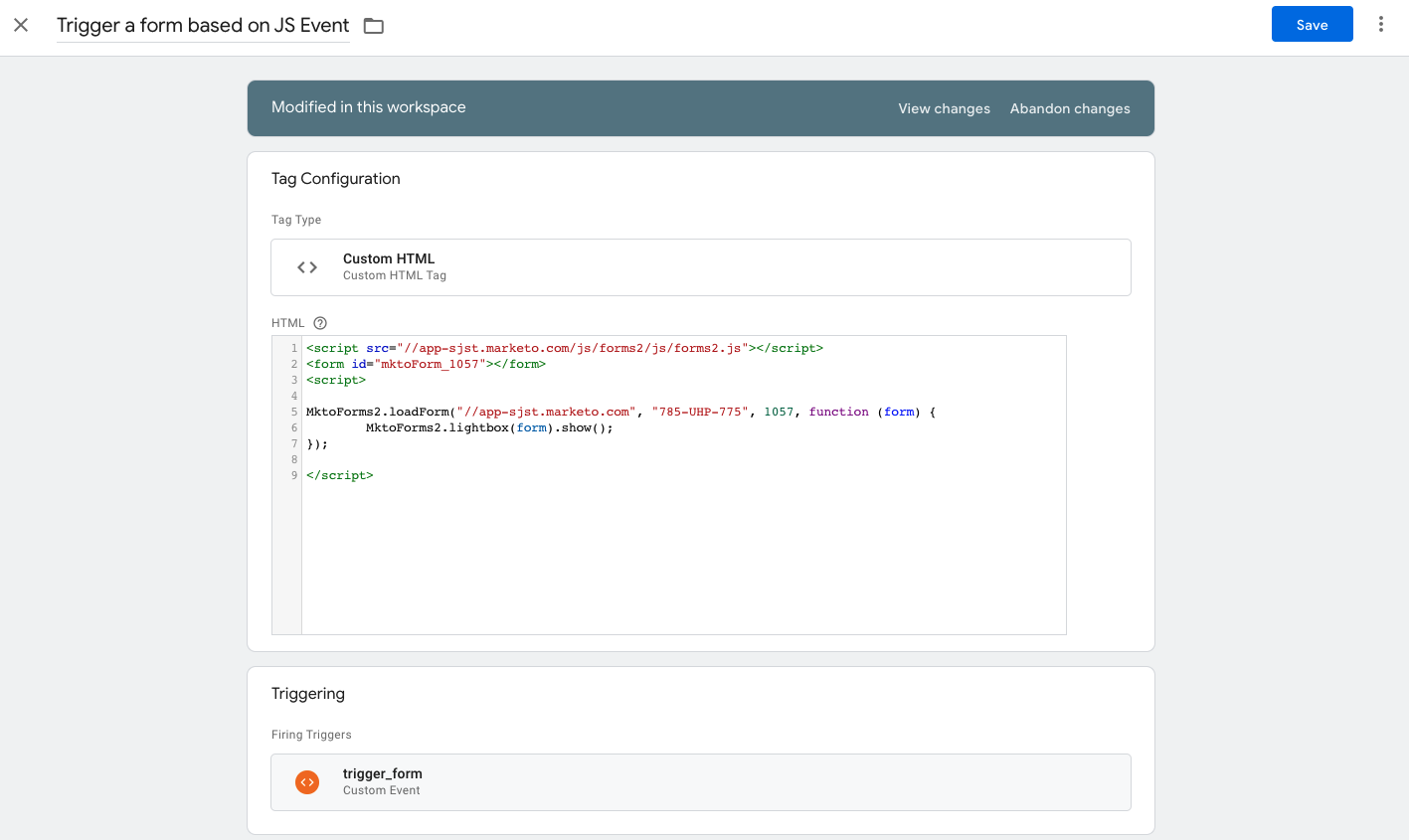
For example, we call trigger the event “trigger_form” by using the following action:
This event can then be used to trigger a tag on Google Tag Manager. In the following example, we add a Custom HTML script that opens a popup form (lightbox) on click. The following code is based on the Marketo API reference examples.
Option 3: Gating content based on visitor's behaviour
Visitor behaviour is another popular way of in-content gating using Celero.
Using Celero, you can setup custom behaviour triggers, for example:
- Visitor was active for 30 seconds or more
- Visitor scrolled past page 3
The behaviour trigger fires a Javascript Event, which could then be used by Google Tag Manager to Trigger a Marketo Form in the same way as described in Option 2.
If you need help setting up your custom event triggers, don’t hesitate to reach out to support@celero.io.